How it works
From conference program to on-site screens
Start with the organizer’s program, give the signs the event’s visual identity and choose what delegates see at each room and across the venue. Here’s how those pieces come together for your production team.
Prepare, preview, monitor
From preparing the program to checking the signs during the event.
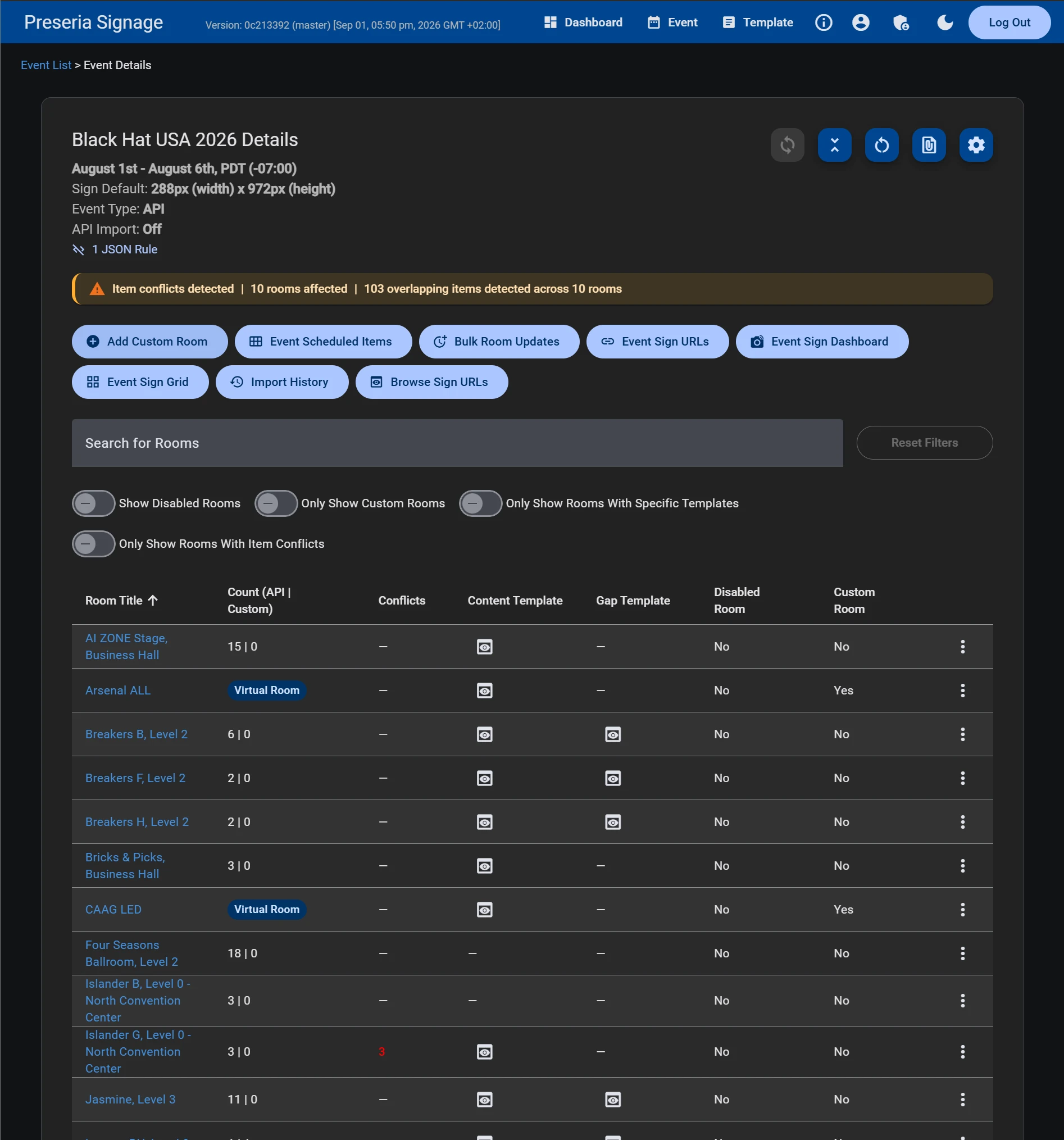
Black Hat USA 2026 · Event room overview. Manage the program
Where the program comes from →Import the program from your event platform or Excel, then see the rooms and their schedules together in one event overview.
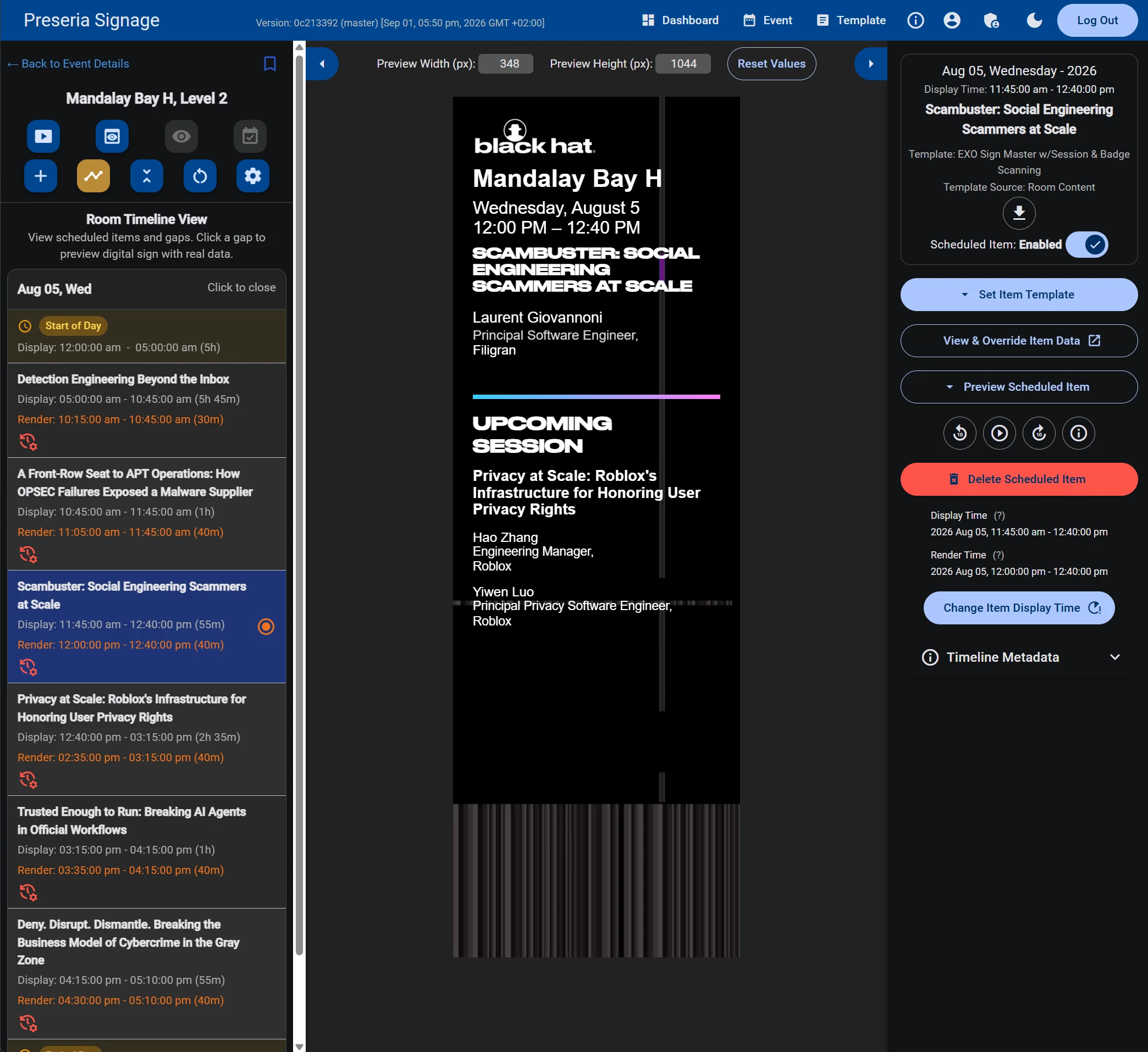
Black Hat USA 2026 · Room schedule and branded sign preview. Prepare the signs
Event-branded layouts →Choose the layout for each screen and preview it with the room’s real session content before the event.
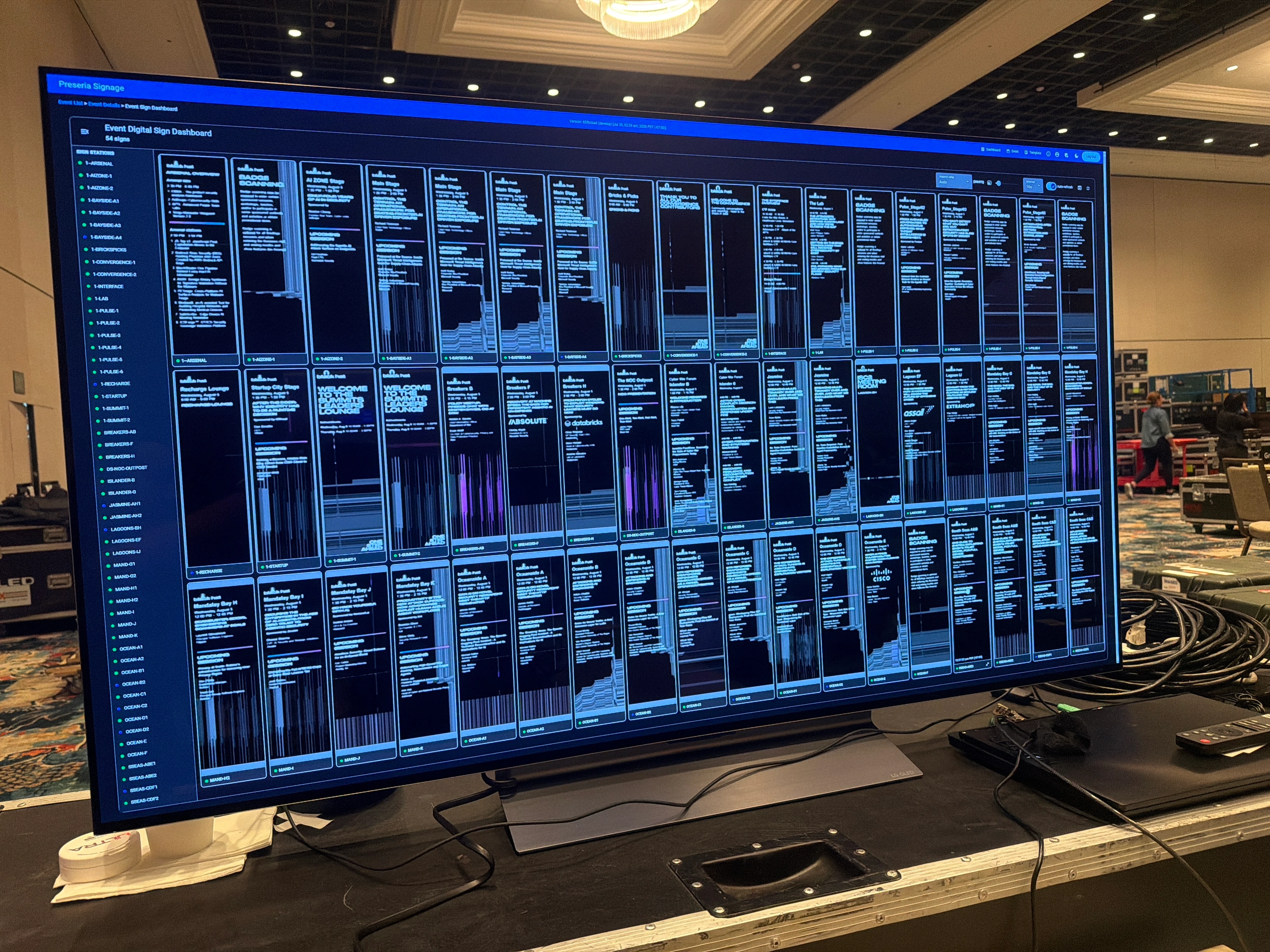
Black Hat USA 2026 · Sign monitoring at the production desk. Monitor the event
Ask for a monitoring demo →See recent screenshots from your sign computers together in one event dashboard, so your team can see what every sign is showing across the venue.
Monitoring uses capture software on the playback computers. It shows their screen output, rather than confirming the physical display is working.
These event captures show Onlit under its former name, Preseria Signage.
Start where the organizer keeps the schedule
Use a ready-made event-platform integration, configure a connection to your own API or upload the program from Excel.
For connected platforms, automatic sync keeps the signs in step with program changes at your chosen interval.
Compare the ways to connect your program →Make it your event
Give your signs the event’s colors, fonts and graphics, with layouts shaped around the program you want to show.
A template defines how a sign looks and how its content is presented. Build it around the event’s colors, fonts and graphics, then connect it to the program for one room or a selected group of rooms. Different displays can use different layouts while sharing the same visual identity.
Read the documentation →Create templates yourself or work with our designers →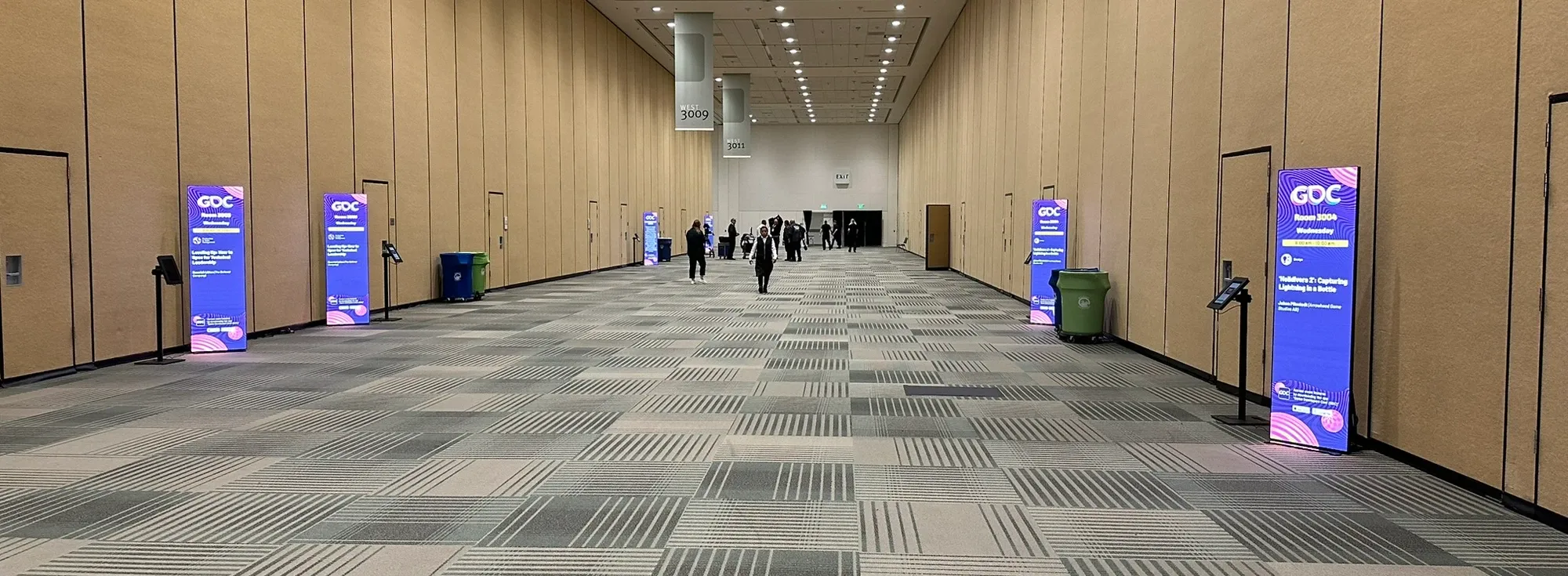
Around the venue
One room, one hallway or the whole conference
Room signs
Show the current session, upcoming sessions or the full day’s program. Each room sign draws on that room’s schedule.
Combine current and next, or show several upcoming sessions (such as the next three). In a full-day view, keep the current session highlighted. A custom layout can also scroll finished sessions out of view as the day progresses. Reuse the same design across rooms, with each sign showing its own program.
Read the documentation →See a room sign at GDC →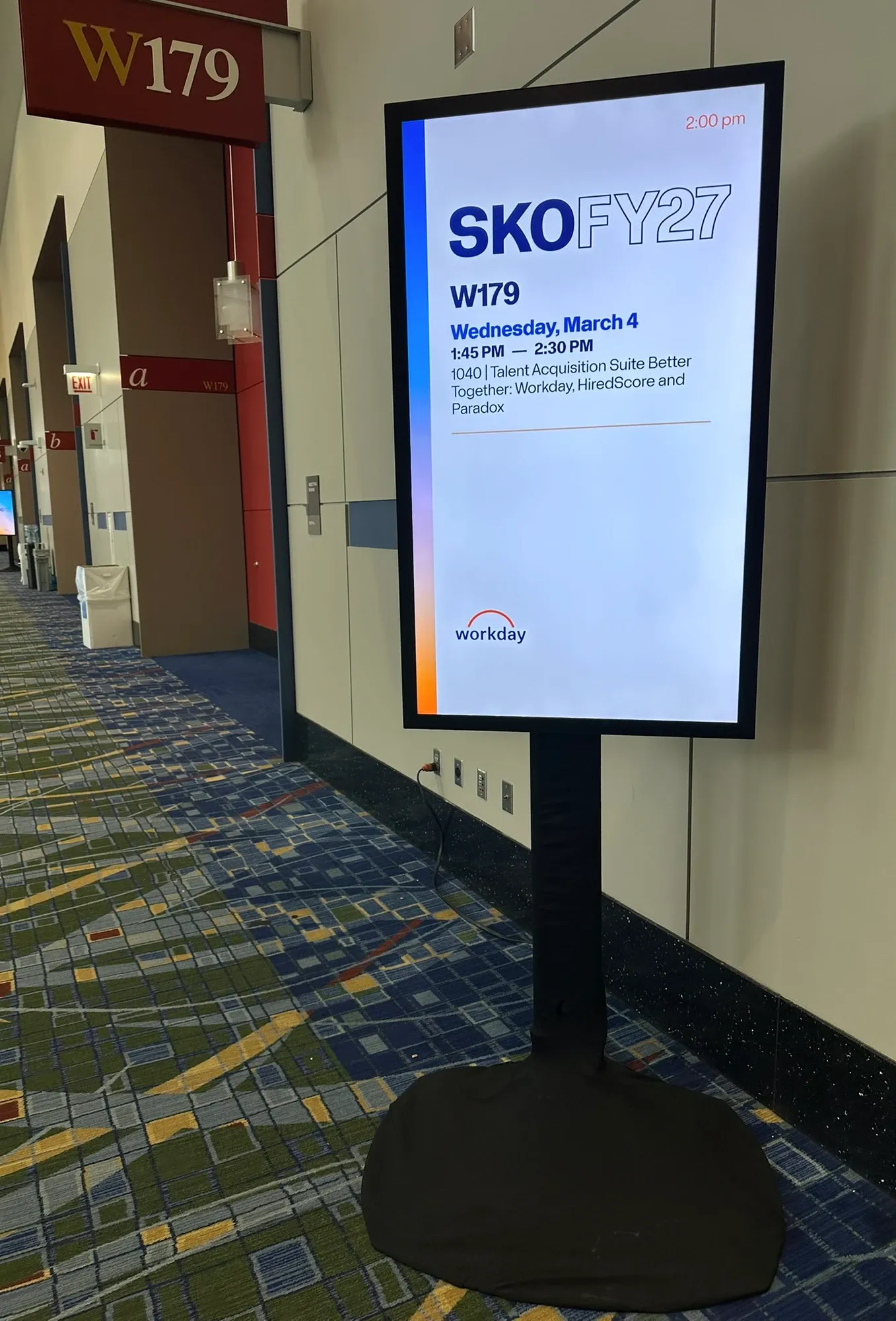
Conference at a glance
Combine selected room schedules on a conference-at-a-glance display. Use it in foyers and shared spaces to help delegates see what’s happening across the conference.
Select which rooms feed the overview, then choose how to present their program. Show what is on now and coming up next, give each room its own column, or merge sessions into one timetable. The layout draws on those rooms’ schedules, without needing a separate copy of the program.
Read the documentation →See an overview at Black Hat Asia →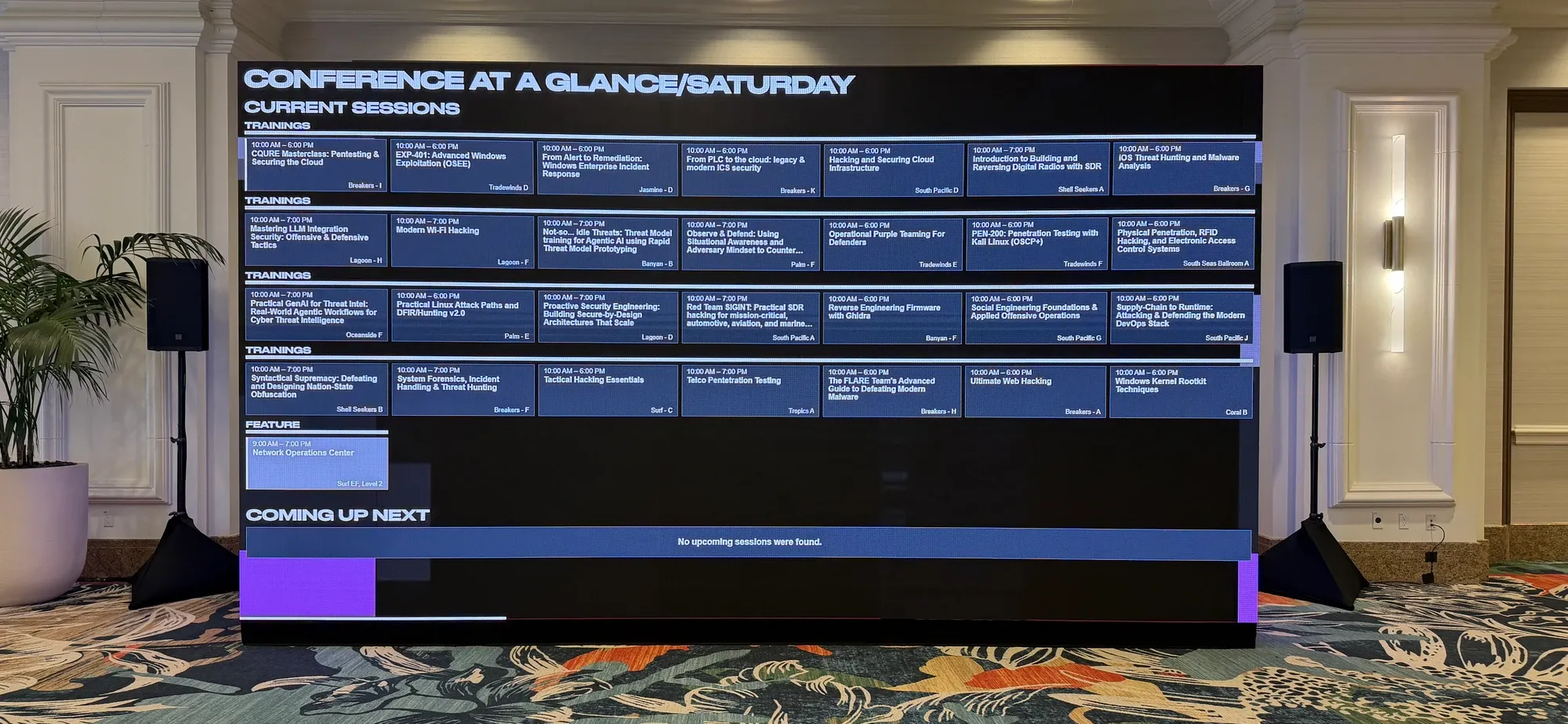
Hallway overviews
An overview does not have to cover the whole conference. One hallway sign can carry the program for three nearby rooms, while other rooms keep their own entrance signs.
Choose the rooms that belong on each shared screen. Their schedules can appear in a hallway overview whether or not those rooms also have individual signs.
Read the documentation →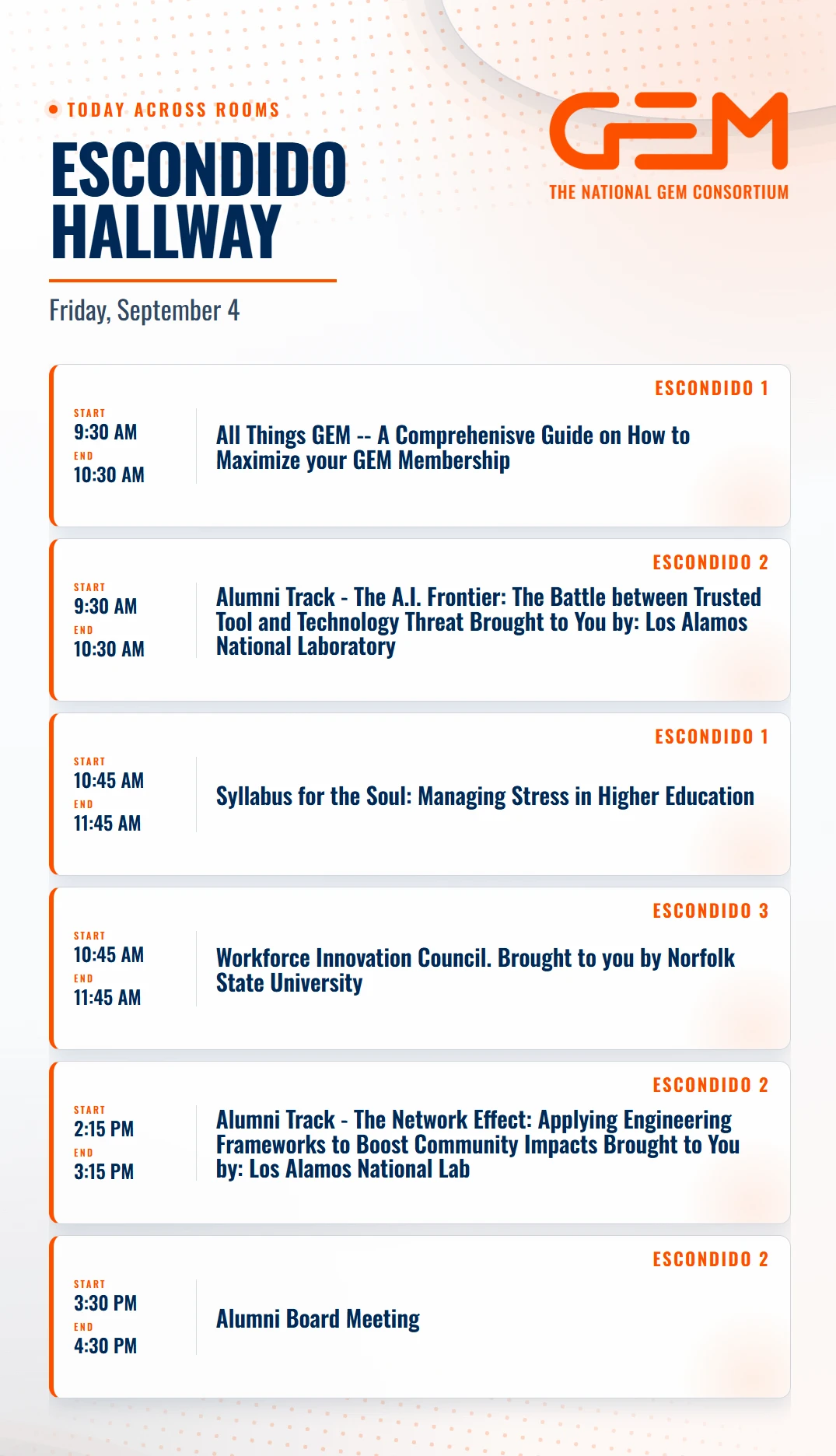
Beyond the program
The same sign can do more throughout the day
Templates can include notices, timed takeovers and live video, with control over what appears, when and for how long, on room signs, hallway boards and conference overviews.
Recurring notices
Show short, recurring notices, then return to the program between appearances.For example, show a badge-scanning reminder for 10 seconds every minute during sponsored sessions, using the sponsorship information in your program data.
Scheduled takeovers
Give an announcement its own time window on selected signs or across the venue, then return to the regular program view.The timed switch is built into the template itself, so it works in room, hallway and conference-overview layouts and the message appears where you need it.
Live keynote feed
Give the keynote a place on the signs, as a live video feed in a custom sign layout alongside the program.A template can switch from the program to a live HLS stream for a scheduled window, then return to its regular view, on a room sign, a hallway board or a conference overview.Needs an active internet connection and a compatible HLS feed.
Program pages, maps and more
Rotate between views instead of fitting everything into one layout.
A conference-at-a-glance or hallway sign can page through a busy program, then show a floor map or other event information. Room signs can alternate their schedule view with information pages too.
Read the documentation →Black Hat USA 2026 · Program pages, maps and more · 22 seconds · Silent video
The video could not be played. Open the MP4 video or read the description below.
Video description
An LED wall shows changing room-schedule pages, a venue floor plan and promotions for upcoming Black Hat events, then returns to the program. Pauses between views are shortened with edits; the footage plays at normal speed. There is no audio.
Your screens, your choice of player
Use TVs and commercial displays, LED posters or LED walls, including compatible screens already installed at the venue.
Run each sign in an up-to-date Chrome or Edge browser on Windows, macOS or Linux. A playback computer feeds your display or LED processor; compatible smart TVs and built-in signage players can open the sign directly.
- Built-in browser support varies by device and browser version, particularly for video and livestreams. An external player is an option when a screen’s built-in browser is unsuitable.
Onlit is the software. For displays we can introduce you to rental partners, and our team can support your crew on site or remotely.
Keep the program running, even offline
Signs preload the schedule and the template’s images and fonts into the browser’s cache. Once loaded, they keep following the downloaded program even if the network connection drops.
Each sign runs from its own URL in a browser on the playback device. It moves on to the next session and switches layouts as scheduled using the downloaded content; new schedule or template updates arrive when connectivity returns.
- Livestreams and other externally hosted content still depend on network access. Offline playback covers the program and assets already downloaded to the device.
See it in action
Planning signage for your next conference?
Tell us about your rooms, screens and where your program comes from. We’ll walk through how Onlit fits your production setup.
We also design templates, build integrations and support crews on site or remotely.
If you’re organizing the conference yourself, ask your AV partner about Onlit or talk to us directly.